Events
An event is where you set up and manage all the details for bookings, reminders, and communication with attendees and staff. You can run multiple events at the same time with no limits.
Events are completely separate from one another, so bookings, reminders, and reports stay organized and specific to the event they belong to.
Types of events
Parent Interviews offers two types of events that can be used to collect bookings for your school or organization, parent-teacher conferencing and uniform fittings.
If you want to run a different type of event, let us know your idea and we’ll see how we can help.
Parent-teacher conferencing
A parent-teacher conference event allows parents and caregivers to book one or more time slots to see their child's teachers. This is most often used for "meet the teacher" events at the start of the school year, and parent-teacher interviews throughout the school year.
Each parent-teacher conference event has one or more staff which can be booked. Those staff will be able to sign in to Parent Interviews and view their bookings.
Uniform fitting
A uniform fitting event, like a parent-teacher conferencing event, allows parents and caregivers to book a time to visit your uniform shop. The main difference is that staff are not used for a uniform fitting event. Instead, you set the number of fittings that can be done for a single time slot.
For example, your uniform shop might have three changing rooms, so up to three fittings are allowed to be booked per time slot.
Managing events
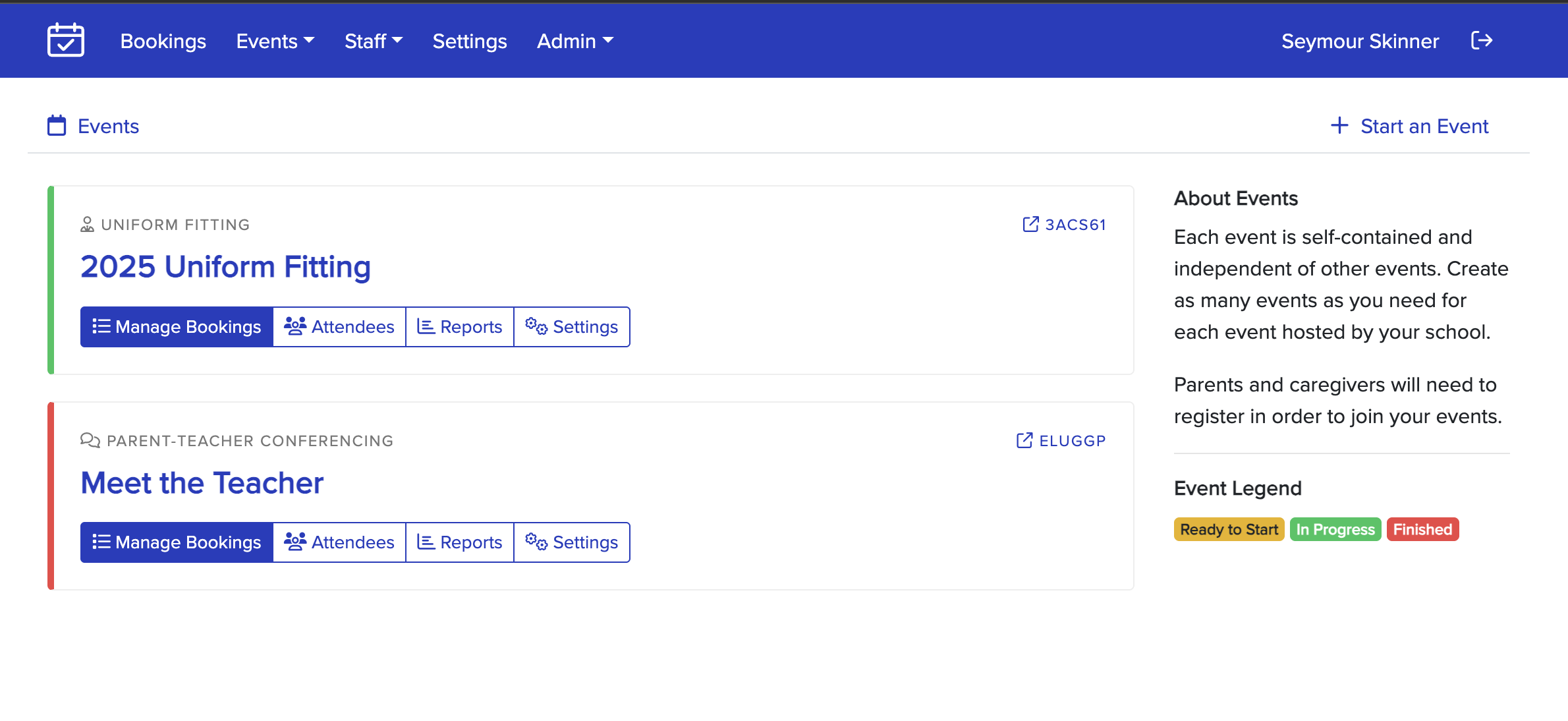
To see your current events, sign into Parent Interviews and use the Events option in the main menu.
Each event shows the event code, name of the event, and is color-coded depending on whether it's open, closed, or ready to start.
You can manage different areas of your event by clicking on the name or one of the buttons.
Starting an event
To see your current events, sign in to Parent Interviews and use the Start an Event option under Events in the main menu.
You'll first be asked what kind of event you want to start, and then be able to fill out all information related to the event, such as the:
- name of the event.
- description for attendees.
- where the event is held.
- dates and times for the event.
- any other event-specific information.
Cancelling an event
If you need to cancel an event, you can do so under the Settings > Cancel Event option when managing an event.
You'll be asked to confirm this decision, and can optioanlly send a notification to all attendees with a message regarding the cancellation.
Cancelling an event will also remove all data associated with bookings, attendees, and any statistics about the event. This cannot be undone.
Further reading
🗃️ Concepts
9 items
📄️ Attendees
Parents and caregivers who sign up to your events are known as attendees. Each attendee can add students, which are used for their bookings.
📄️ Bookings
Information about bookings and what they represent
📄️ Breaks
Breaks allow you to block out time slots on an event to prevent people from booking them, such as a staff member who can't stay for the whole event. Blocked time slots will appear as unavailable to attendees. Staff making bookings are able to bypass breaks where needed.
📄️ Reminders
The Reminders feature helps keep attendees and staff up to date by sending them automated emails about their upcoming bookings.
📄️ Reports
The Reports section allows you to quickly generate and download information about your event in either CSV or PDF format, such as:
📄️ Staff
For certain types of events (such as parent-teacher conferencing) you'll need to add one or more staff to the event that parents and caregivers can book.
📄️ Statistics
The Statistics section gives you real-time insights into how your event is performing. This helps you monitor engagement, identify busy periods, and manage staff workloads effectively.