Two-factor authentication
Two-factor Authentication adds an extra layer of security to your account by requiring a one-time code from an authentication app, in addition to your email and password.
You can use any app that supports TOTP (Time-based One-Time Passwords), such as:
- Google Authenticator
- Authy
- Microsoft Authenticator
- 1Password or Bitwarden (if you already use a password manager)
Enabling two-factor authentication
- Go to your Account by clicking your name in the top-right corner.
- Click on Two-factor authentication.
- Scan the QR code with your authentication app.
- Enter the 6-digit code from your app to confirm setup.
- Save the backup codes in a safe place, such as in your password manager.
Two-factor authentication will now be required each time you sign in.
Recovery codes
When you first enable two-factor authentication, you'll be presented with ten recovery codes that can be used if you lose access to your device. Each recovery code can only be used once.
When prompted for your two-factor authentication code during sign-in, enter a recovery code instead of a two-factor authentication code.
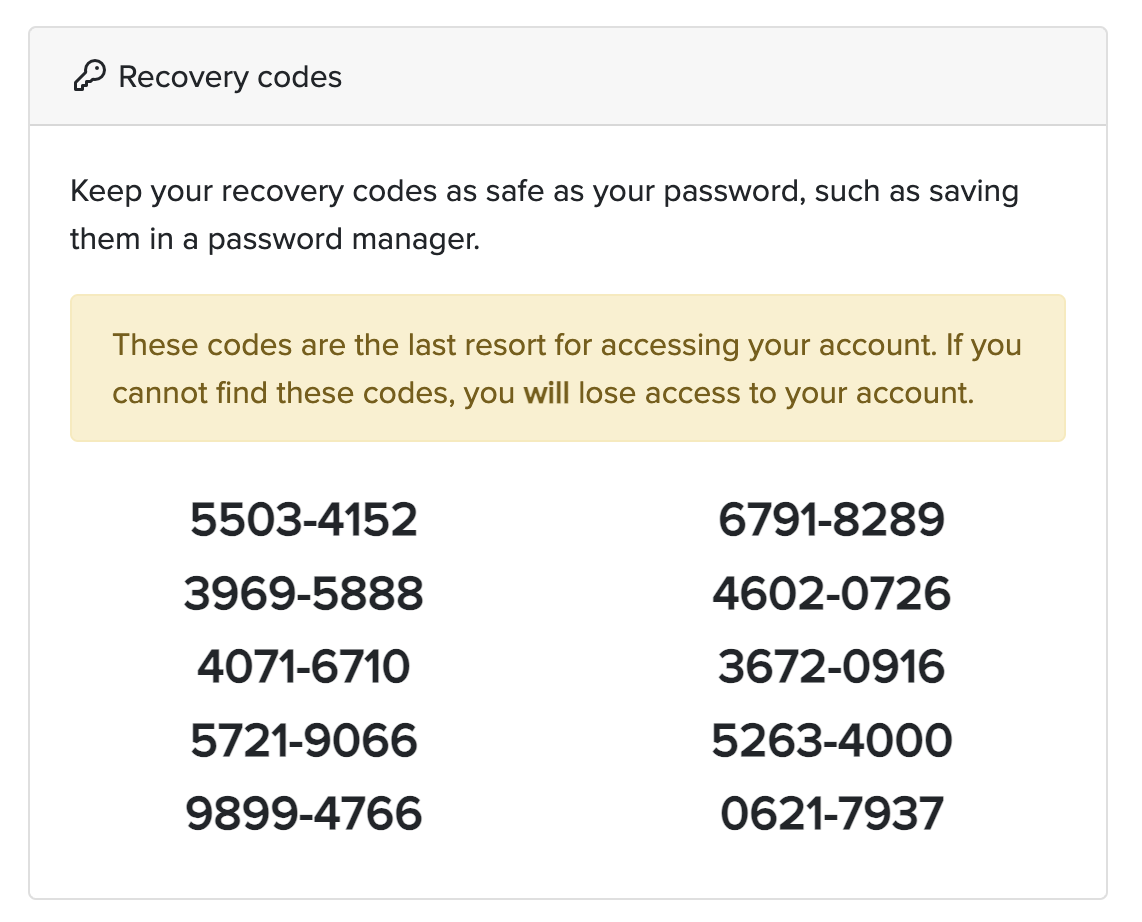
Parent Interviews cannot restore access to accounts with two-factor authentication enabled.
If your device is lost, broken or inaccessible, you will not be able to access to your account unless you have your recovery codes. Keep your recovery codes in a safe place so you're never locked out of your account.
Disabling two-factor authentication
- Go to your Account by clicking your name in the top-right corner.
- Click on Two-factor authentication.
- Enter the 6-digit code from your app to confirm disabling two-factor authentication.
Two-factor authentication will no longer be required after signing in.